Your videos,
beautifully organized.

Get a great local video player experience with OptiCast! It finds and organizes your Movies and TV shows with posters and info, and plays them flawlessly offline.

Android 8+ phones, including older devices Offline-first posters & subtitles cached GPL-3.0 open source, no ads, no tracking
v2.6.124 (173) ~39 MB 2026-11-01 โœ“ Verified ยท SHA256 signed
โœ“ Official distribution via GitHub Releases and F-Droid
Scan to download on phone
Open camera, point at QR, tap link. Or share this page.
stars stars downloads downloads release release

Why it's different

Most players try to do everything. OptiCast focuses on one thing: playing your own videos well. Offline-first, no streaming catalogs, no login walls.

๐ŸŽฌ Focused local playback

Designed for your personal collection. Automatically organizes your movies and TV shows with clear artwork, so you can quickly find what to watch. Continue where you left off, browse by category, and enjoy a smooth, responsive experience.

๐Ÿ“ด Offline-first, by design

Works fully offline after the initial setup. Posters and subtitles are saved to your device, so you can watch without an internet connection. Updates are checked only when you are online, using minimal data.

๐Ÿ”’ Private & simple

No advertisements, no tracking, and no accounts required. Your videos stay on your device. Open source, offline-first, and easy to use.

Direct Download - 30 seconds install

๐Ÿ“ฑ Install in 3 taps

1
Tap Download
Tap blue button above. APK downloads (38 MB).
2
Open APK
Open notification or Files โ†’ Downloads โ†’ OptiCast.apk โ†’ Install. Allow "Install unknown apps" if asked.
3
Grant permission
Open app โ†’ Allow video access โ†’ Your videos appear organized. Posters cached offline.

โœ“ Verified & Safe

  • Open source: GPL-3.0, source at GitHub, reproducible
  • Direct from developer: No tracking, no third-party stores
  • Offline-first: No account, media stays on device
  • Update inside app: Settings โ†’ Check for updates โ†’ Download & Install
  • Privacy: No ads, no tracking, media stays local
โœ“ Verified ยท Open source ยท No tracking
Where are my videos? - OptiCast looks in your Movies, DCIM, and Download folders. If you don't see a video, check Settings โ†’ Excluded folders and make sure the folder is not excluded, then pull to refresh in your Library.

Screenshots - real app

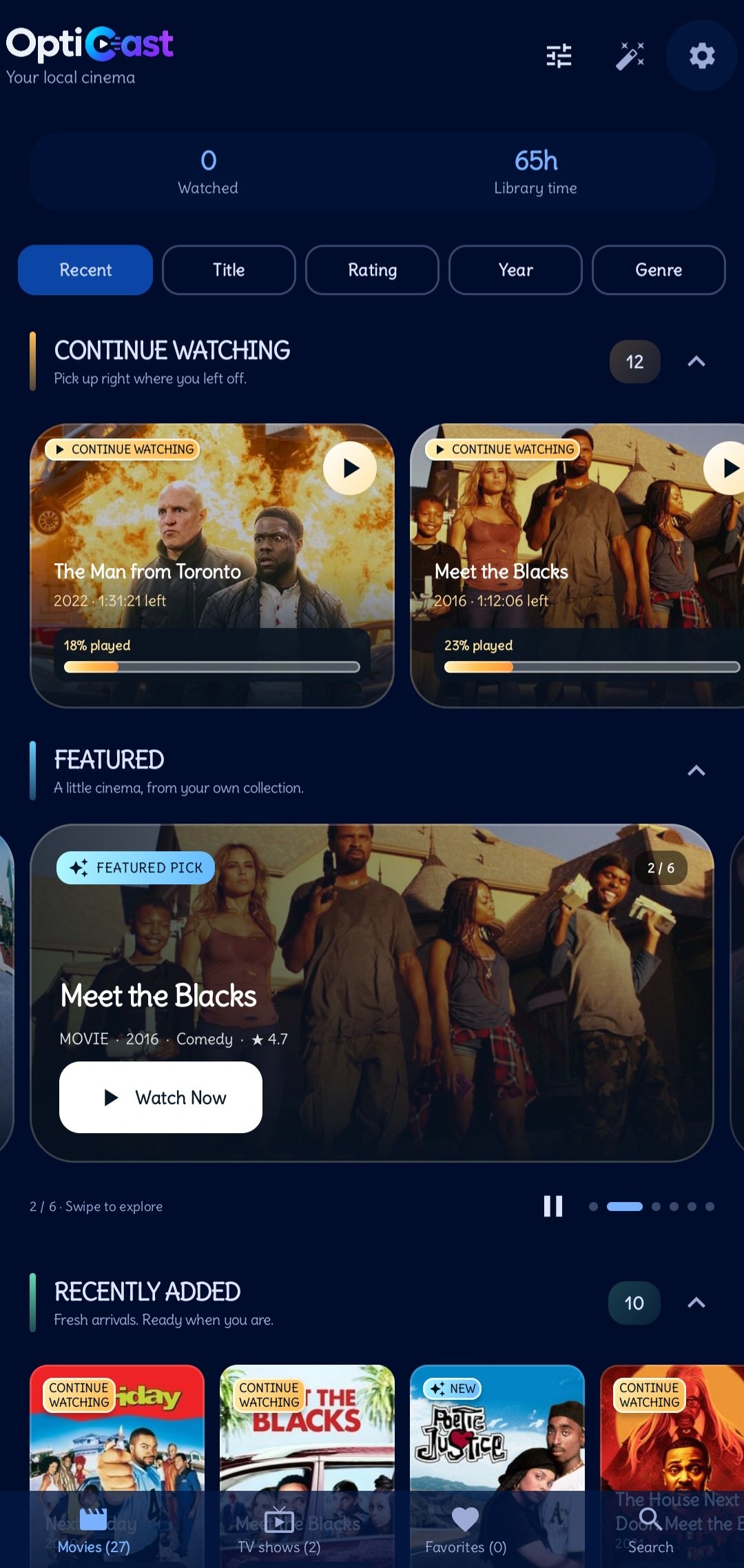
Library
LibraryYour collection at a glance. Continue watching and recently added titles.
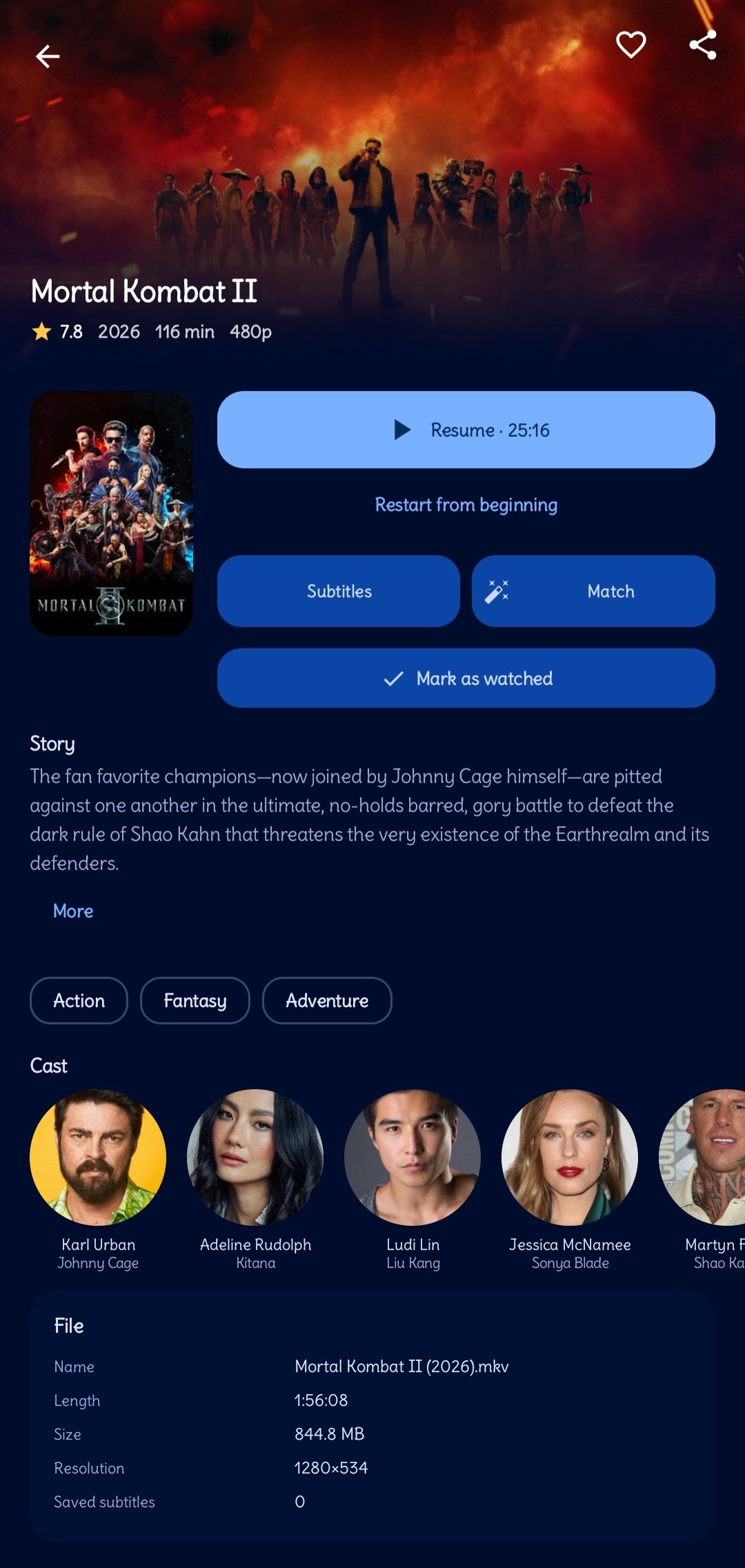
Movie detail
Movie detailPosters, cast, genres, and runtime. Saved for offline viewing.
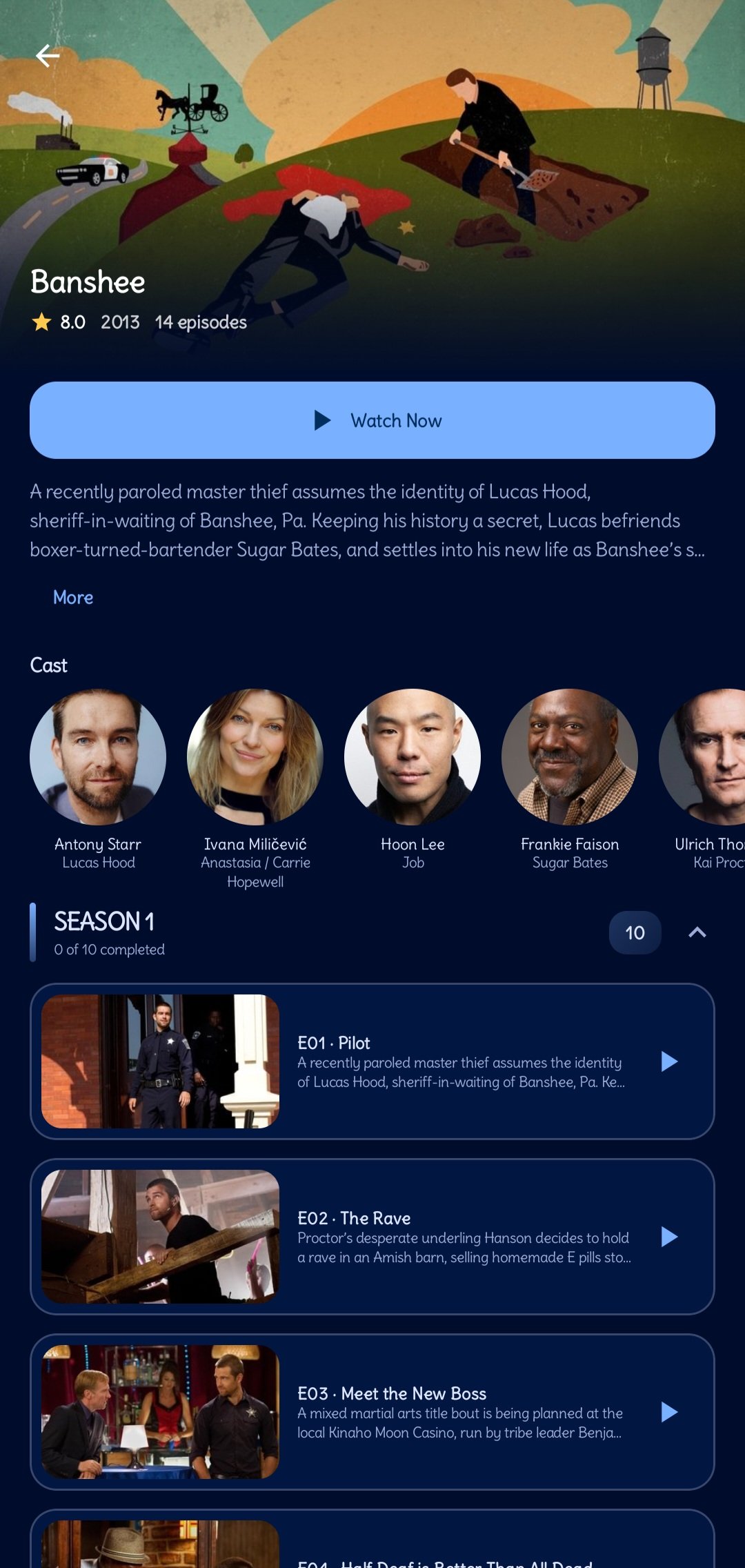
TV show
TV showsBrowse seasons and episodes. Automatically remembers your progress.
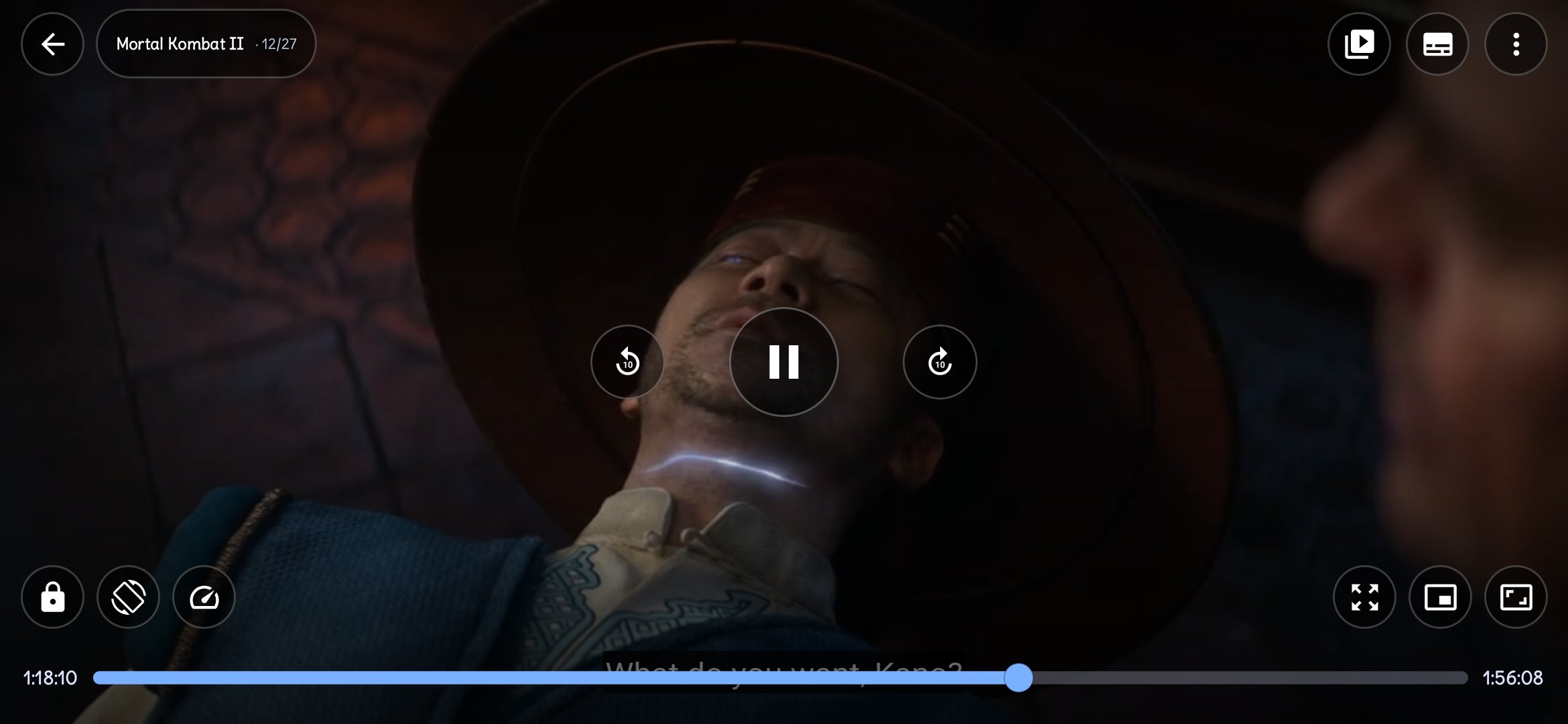
Player
PlayerSimple controls, adjustable speed, picture-in-picture, and sleep timer.
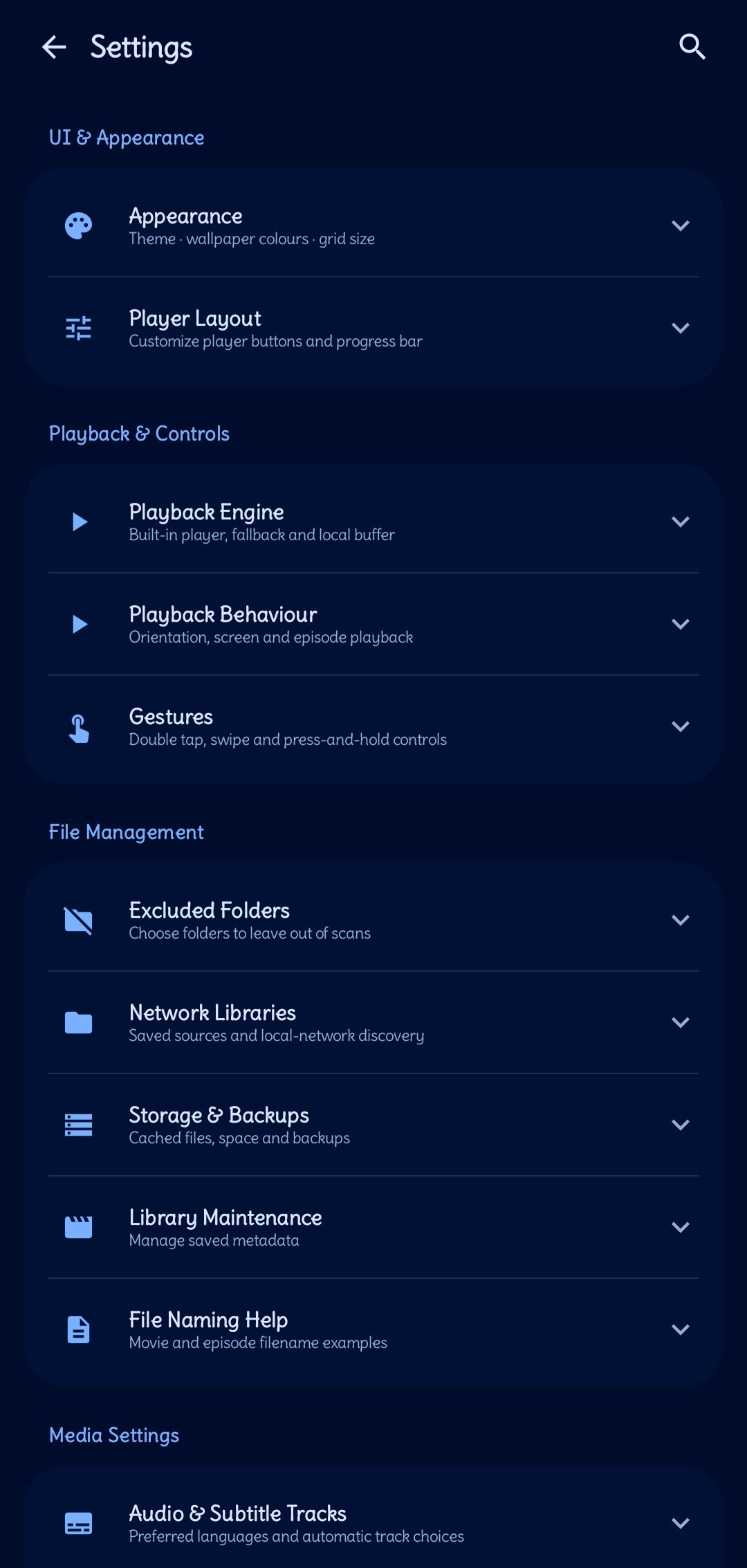
Settings
SettingsCustomize your experience, manage subtitles, and check for updates.

Features - offline-first

๐Ÿ“š Library

Your videos organized automatically. Continue watching, browse by category, and find any title with fast search.

๐ŸŽจ Movie Info

Clear posters and details for your movies and shows, saved for offline viewing.

๐Ÿ’ฌ Subtitles

Multiple languages, saved offline, with customizable fonts and dual subtitle support.

โ–ถ๏ธ Player

Plays your videos smoothly with intuitive gesture controls and picture-in-picture.

๐Ÿ”„ Updates

Stay up to date with in-app updates and a clear view of what's new.

๐Ÿ“ด Offline

Works fully offline after setup. No internet needed to watch your collection.

FAQ - quick answers

Is it for TV?
No - designed for phones. Works on Android 8 and newer, including older devices. Focused on providing the best phone experience.
Does it work offline?
Yes - works fully offline after the initial setup. Your videos, posters, and subtitles are saved to your device, so you can watch without an internet connection.
How to update?
Install the new version over the old one - your data is preserved. You can also update directly inside the app from Settings โ†’ Check for updates.
Why does it need install permission?
To allow in-app updates. When a new version is available, you can download and install it directly from the app. Installation always requires your confirmation in the system installer.
Where are my videos?
OptiCast looks in your Movies, DCIM, and Download folders. If a video is missing, check Settings โ†’ Excluded folders to ensure the folder is not excluded, then pull to refresh in your Library.
Full FAQPrivacy PolicyChangelog

Links & Stores